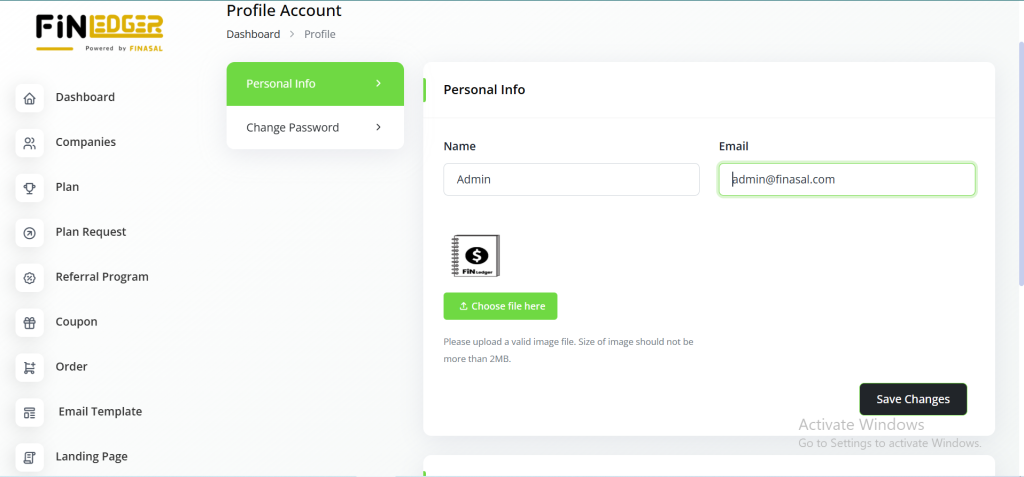
Admin Login Process
The Admin Login Process in FinLedger Go allows authorized users to securely access and manage essential system functionalities. It ensures that only verified personnel can perform administrative operations safely and efficiently. Through secure authentication, the system protects sensitive business data from unauthorized access. Admins can manage permissions, configure settings, and oversee all modules from a centralized dashboard. The login process provides a smooth and reliable experience, maintaining both security and ease of use across the platform.
Access the Login Page
To begin the login process in FinLedger Go, open your preferred web browser and navigate to the official login page. This is where authorized users can securely sign in to access the system’s core features and tools.
Key Highlights:
Open any supported web browser on your device.
Enter the official FinLedger Go login URL in the address bar.
Ensure a stable internet connection for smooth access.
Verify that you’re visiting the correct and secure login page.
Proceed to enter your credentials to continue to the dashboard.
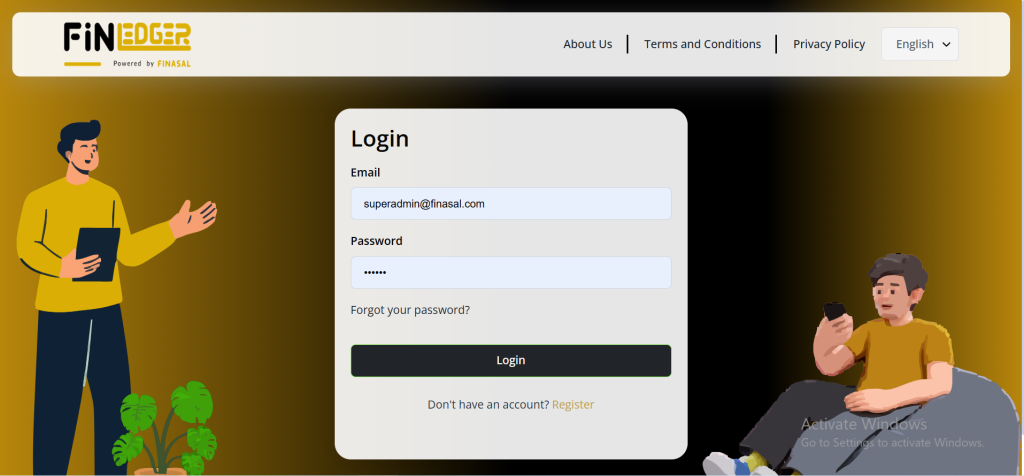
Enter Credentials
To log in to FinLedger Go, provide the registered email address and the password linked to your admin account. This ensures secure authentication and access to administrative features.
Key Highlights:
Enter the registered email address associated with your admin account.
Input the password linked to your admin credentials.
Ensure both email and password are typed correctly to avoid login errors.
Keep your credentials confidential to maintain account security.
Click the Sign In button to access the admin dashboard.
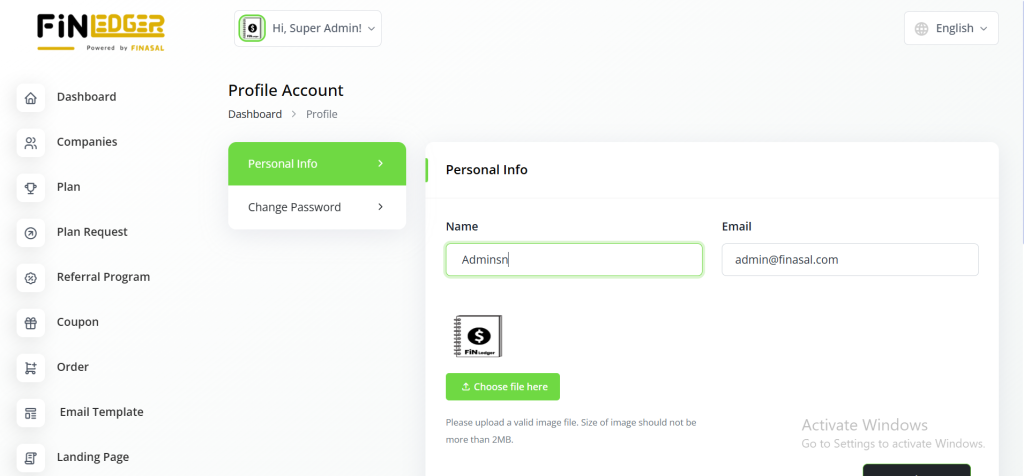
Login
After entering your admin credentials, click the “Login” button in FinLedger Go to start the authentication process. This action verifies your details and grants access to the system.
Key Highlights:
Click the Login button after entering email and password.
The system begins verifying your credentials for authentication.
Wait for the process to complete to access the dashboard.
Ensure your internet connection is stable during login.
Access all admin features once authentication is successful.
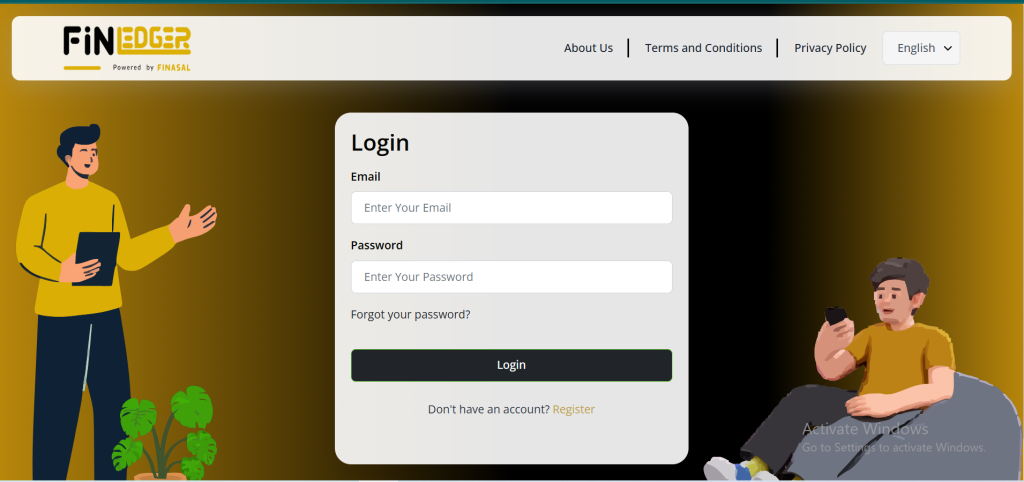
Dashboard Access
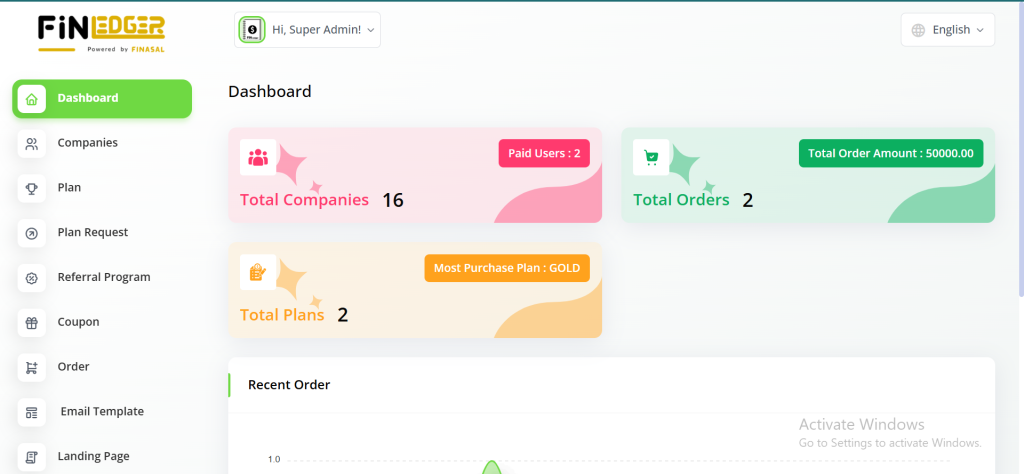
Once your credentials are verified in FinLedger Go, you will be directed to the admin dashboard. This central hub allows you to manage all system functionalities efficiently.
Key Highlights:
Successful verification grants access to the admin dashboard.
View an overview of system statistics and activities.
Navigate easily to different modules and management sections.
Access all administrative tools and settings from one central location.
Begin performing admin tasks immediately after login.
Creating New Entities
Within the FinLedger Go dashboard, users can create multiple business entities to streamline operations. By clicking the “+” button on the right-hand side, you can initiate the creation of products, customers, vendors, proposals, invoices, bills, accounts, and goals. This feature allows for efficient management and expansion of business activities directly from the dashboard.
Key Highlights:
Click the “+” button to start creating new entities.
Add products, customers, vendors, and other essential records.
Generate proposals, invoices, and bills directly from the dashboard.
Create accounts and set business goals efficiently.
Manage and expand business operations seamlessly in one place.
Language Preferences
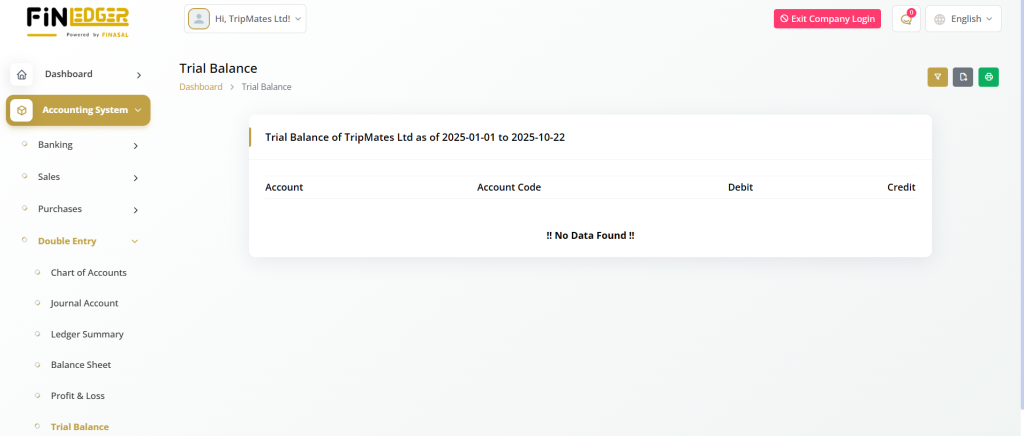
The “EN” button in FinLedger Go allows admins to select their preferred language. It also provides the option to enable or disable specific languages as needed, enhancing usability for diverse users.
Key Highlights:
Click the “EN” button to access language options.
Select the preferred language for the dashboard interface.
Enable or disable languages based on user requirements.
Ensure a comfortable and personalized user experience.
Quickly switch between languages without affecting functionality.

Admin Functions
Use the FinLedger Go dashboard to access and manage functionalities assigned to your admin role. This includes tasks like product management, order processing, and handling customer interactions.
Key Highlights:
Navigate the dashboard to access all admin-assigned features.
Manage products, orders, customers, and vendors efficiently.
Perform daily administrative tasks from a centralized interface.
Monitor business activities and system performance in real time.
Streamline workflow to enhance operational efficiency and control.